Before you apply for reduced fare, you need to (1) create a FAREPAY account and (2) link a FAREPAY Card to that account. Learn how to take these required first steps here. (register/add card Scribe)
A FAREPAY account requires a current, valid email address. If you have no email address or someone with an email address to help you, contact Customer Service at 801-RIDE-UTA (801-743-3882).
Once you have completed those required first steps, this tutorial will help you apply for reduced fare.
1. On your computer or smart device, navigate to farepay.rideuta.com.
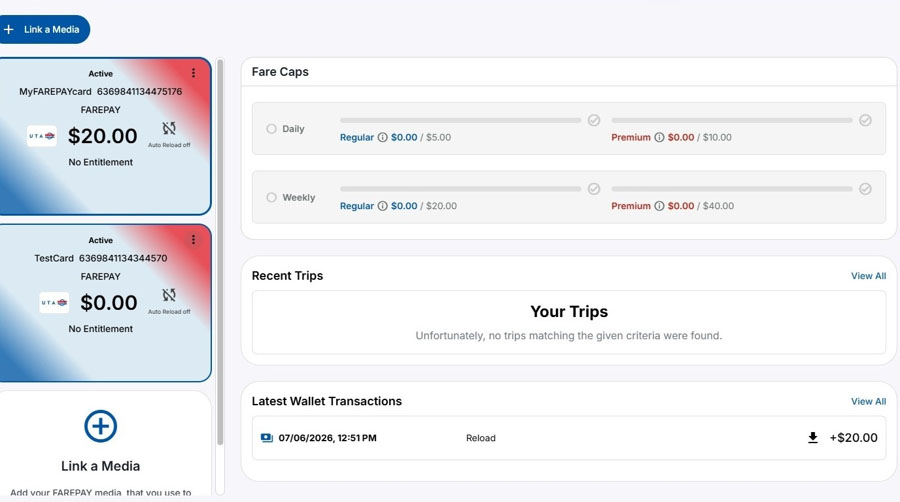
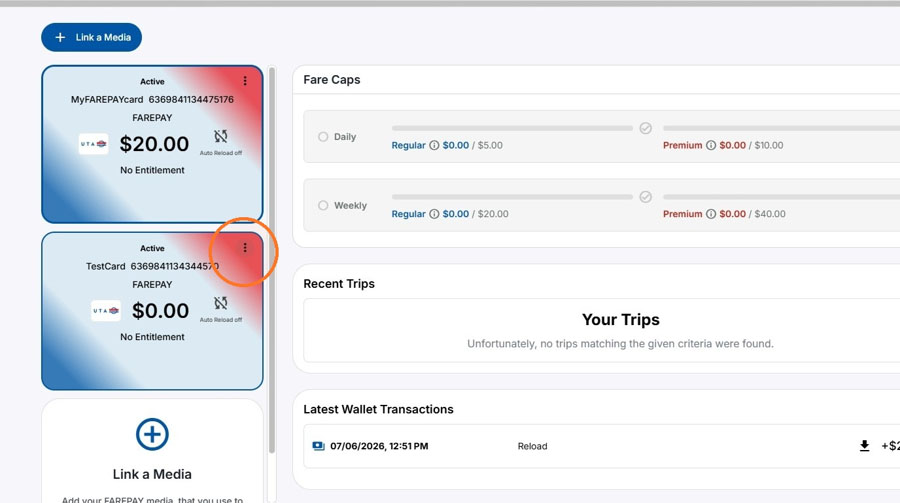
2. Click the 3 dots in the upper right corner of the FAREPAY Card of the person applying for reduced fare.
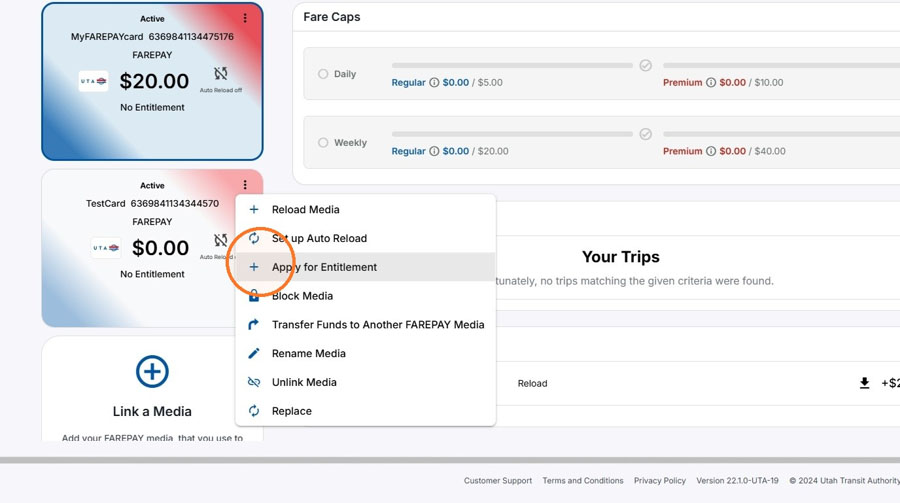
3. On the pop-up menu, click "Apply for Entitlement" — this will start your reduced fare application.
4. On the "Apply for Entitlement" application window, the "Media" field will display the nickname of a FAREPAY Card linked to your account. Click the dropdown arrow to show any additional FAREPAY Cards linked to your account.
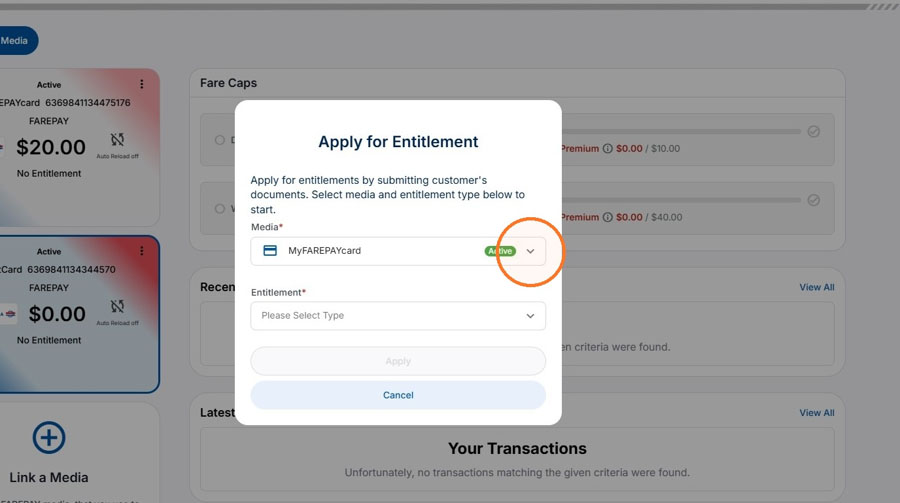
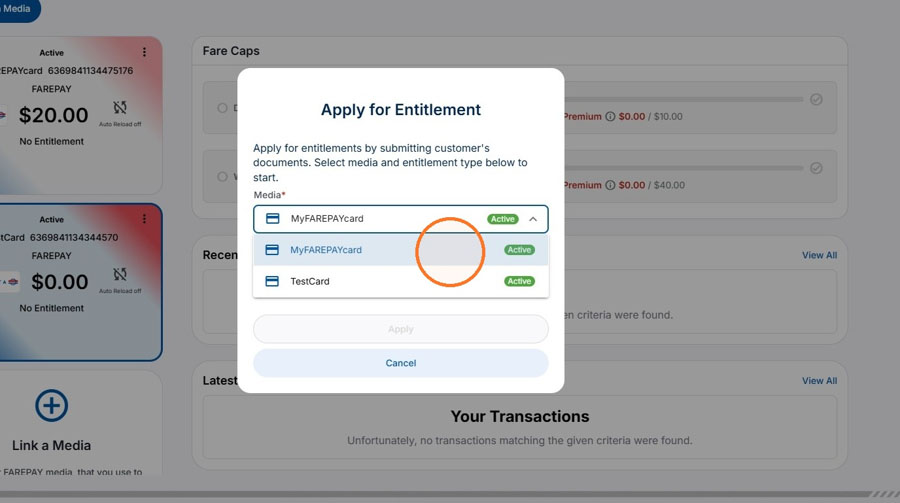
5. Click the FAREPAY Card of the person who is applying for reduced fare. This is the card that will be activated for reduced fare if this application is approved.
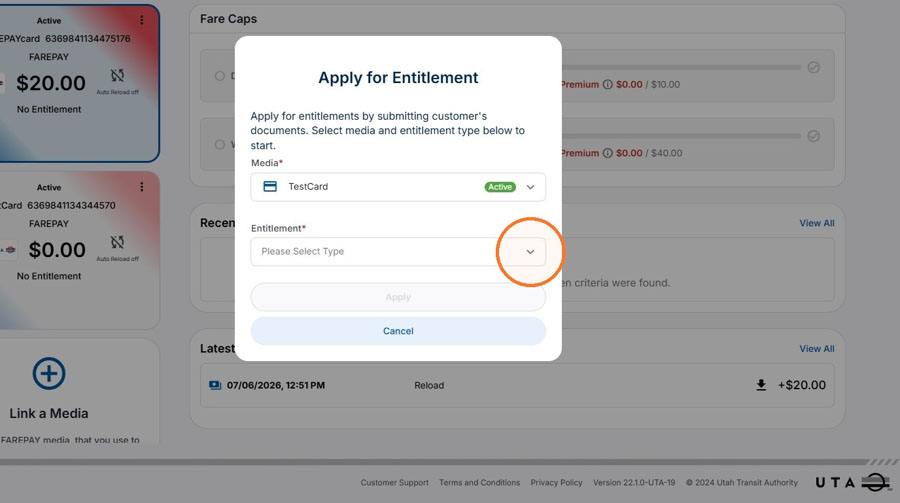
6. Click the dropdown arrow in the "Entitlement" field.
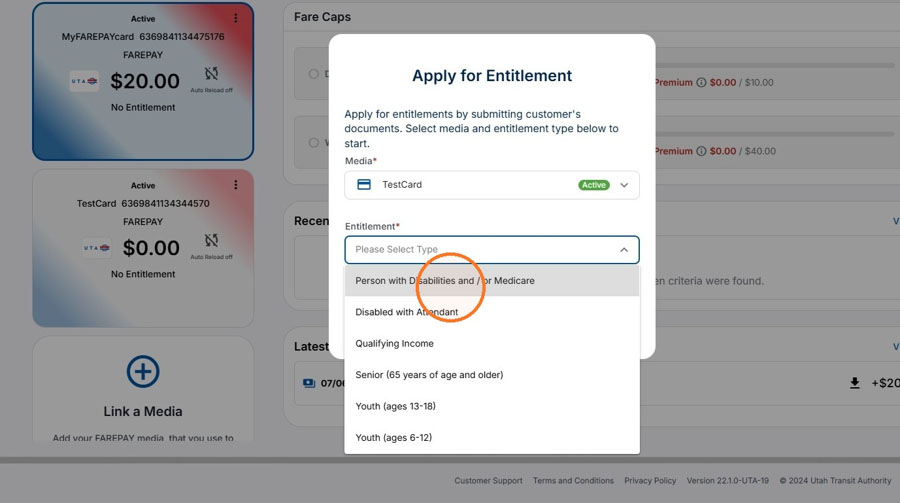
7. In the dropdown list, click the reduced fare category you (or the person you are helping) are applying for.
Reduced fare is approved for qualified applicants in the following categories:
- Persons with Disabilities (with or without an attendant* )
- Persons with Low Income
- Seniors
- Youth
Visit the "Do I Qualify? Detailed Definitions" section of rideuta.com/reducedfare for more information about each of these categories.
* The attendant in the "Disabled with Attendant" category in the dropdown list below is a person who rides with and assists a person with a disability.
8. After you select an eligibility category, the application form will show more information about this reduced fare category and explain what documents, if any, are required for your application.
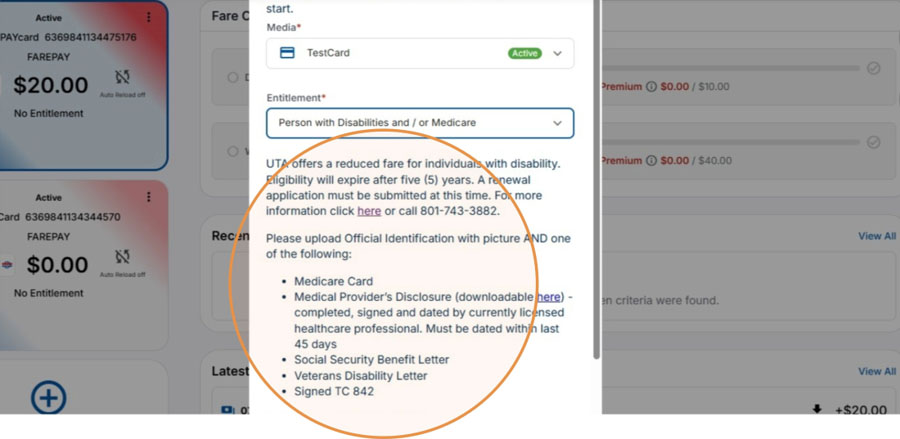
9. The form may also provide check boxes and fields to upload documents to demonstrate your eligibility.
Fields with red asterisks ( * ) are required to complete your application.
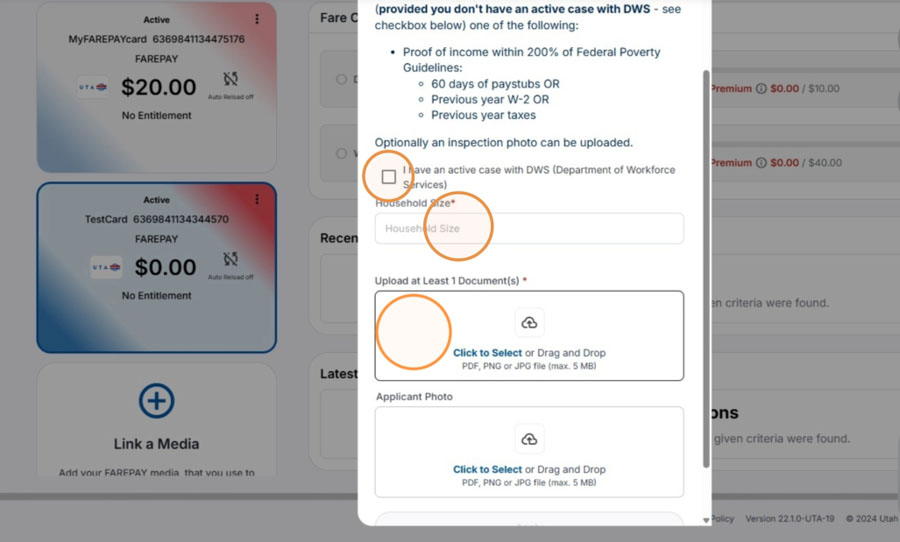
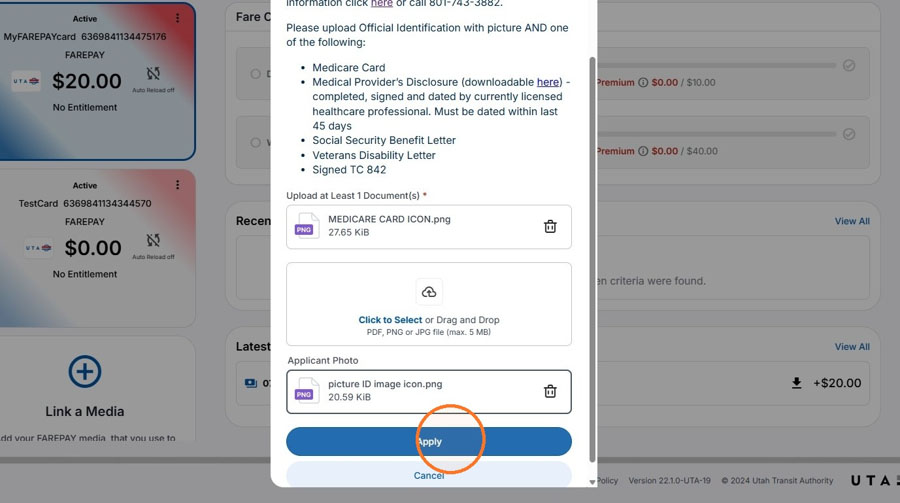
10. Click the required document fields and follow the document upload instructions.
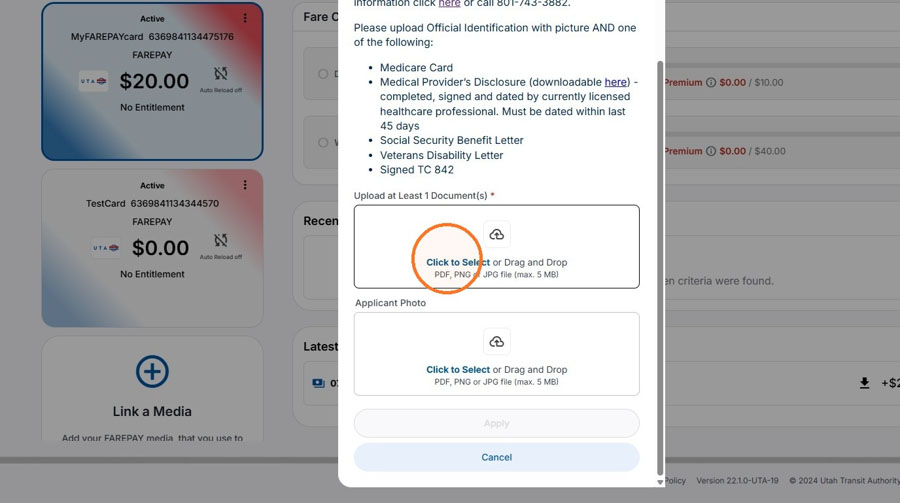
11. If you upload a photo of the applicant, click the "Applicant Photo" field and follow the upload instructions.
Note: A photo of the applicant may help identify this FAREPAY Card as the applicant, especially if your account includes multiple FAREPAY Cards.
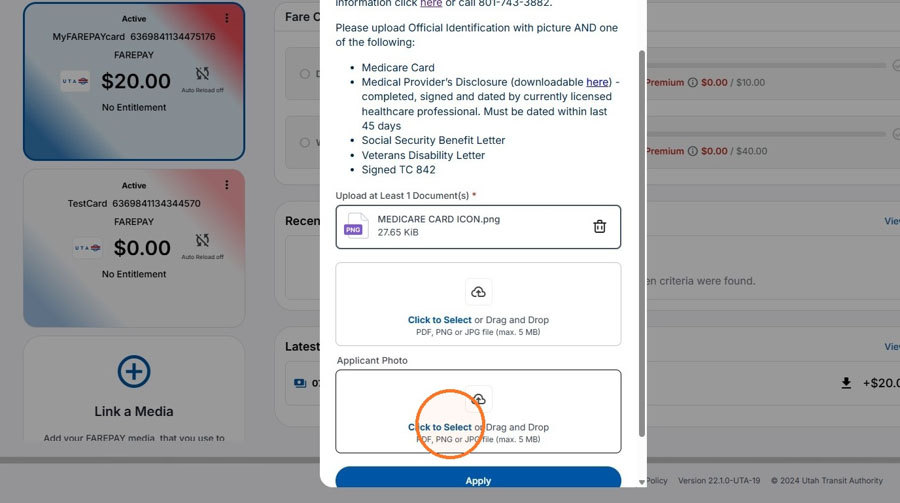
12. After completing all required steps and uploading required documents, click "Apply."
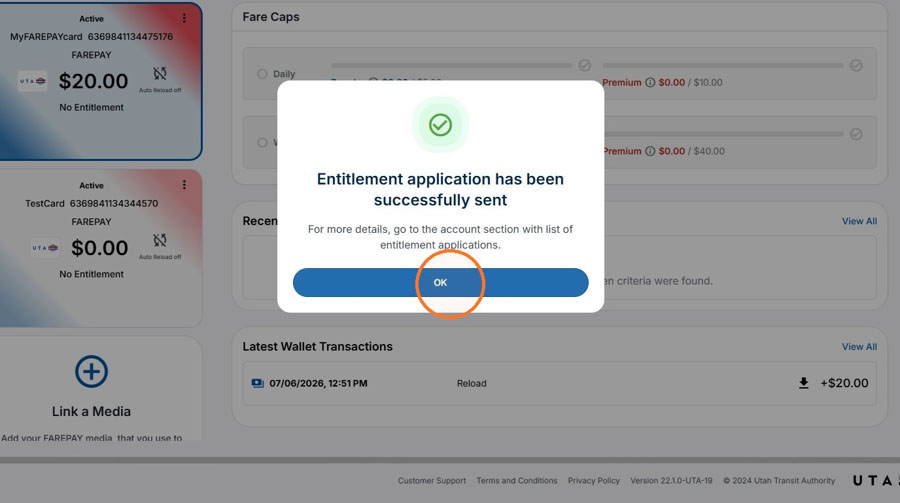
13. Your application is complete. Click "OK" to return to your FAREPAY account dashboard.
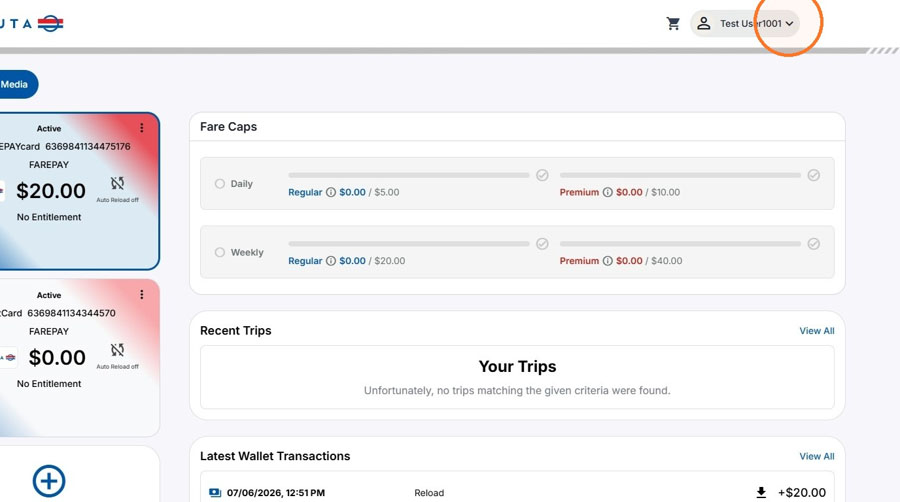
14. On your FAREPAY account, you can check the status of your reduced fare application. Click your profile button at the top right corner of the dashboard.
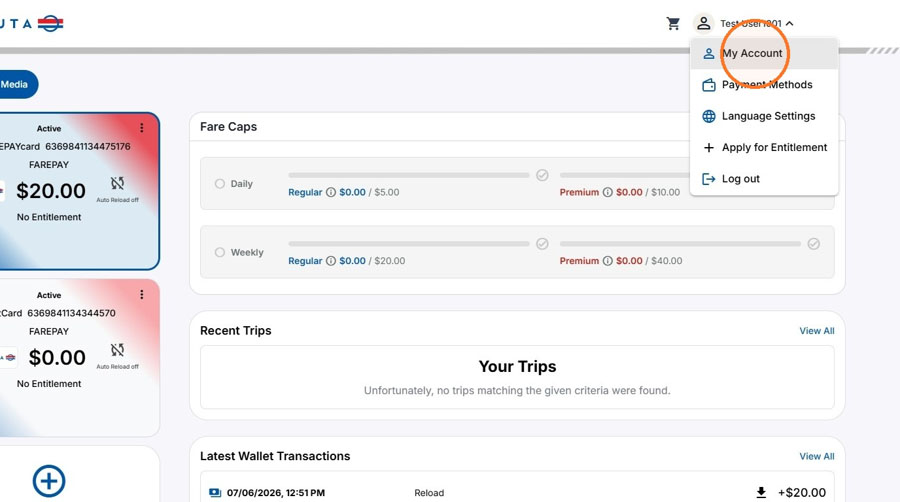
15. Click "My Account" and scroll down the page.
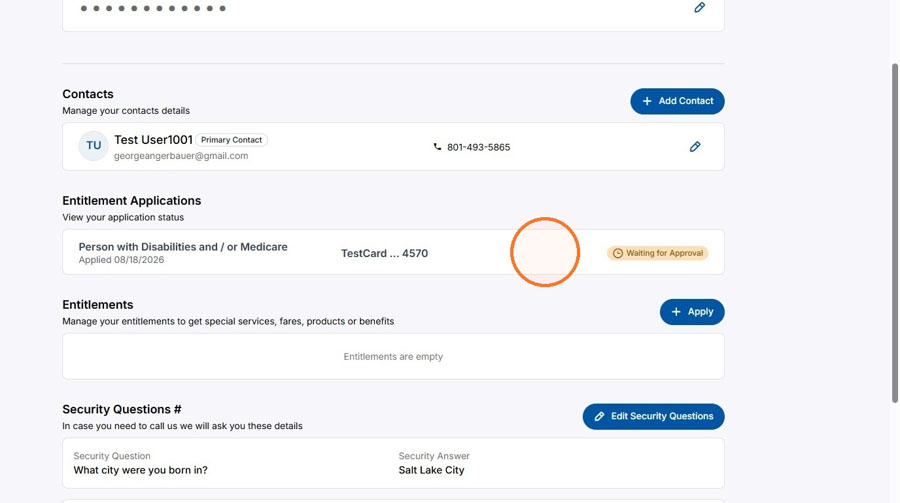
16. The "Entitlement Applications" section will show any applications submitted for reduced fare. Note that UTA reviews applications within 3-5 business days, after which we will notify you by email whether the application is approved. Check the email you listed on your FAREPAY account for that notification.
If your application is approved, it will appear in the "Entitlements" field, indicating that reduced fare has been activated on the FAREPAY Card in the application. Any time it is tapped, that FAREPAY Card will then charge fare at the discounted reduced fare rate.